Getting started
Signal Loom documentation
Signal Loom is a local-first creative suite with four connected workspaces. Your projects are .sloom files that live on your device. There are no Sloom accounts, no cloud sync services, and no Sloom servers. Everything you generate or edit stays in your project unless you export it.
Bring your own keys. Signal Loom does not include AI usage credits or a built-in model. You connect to AI providers using your own API keys. Usage is billed directly to you by each provider.
The four workspaces — Flow, Image, Paper, and Video — all open the same .sloom project and share one source library. A clip you generate in Flow is available in Image, Paper, and Video without any import step.
Installation
-
1
Open Google Play
Search for “Signal Loom” or follow the link from sloom.studio. The app is a one-time purchase at $9.99 USD with no subscription or in-app purchases.
-
2
Purchase and install
Complete the Google Play purchase. The app installs like any Android app. No account with Sloom is created or required.
-
3
Open Signal Loom and enter your API keys
On first launch, tap the Settings icon to open the provider configuration panel. Add at least one API key to enable AI generation features. See API keys for details.
-
4
Create or open a project
Tap New Project to create a fresh
.sloomfile, or Open to load an existing one from your device storage. Projects can live anywhere accessible to Android (internal storage, SD card, or a folder you choose).
Tip: On Android 13 and later, Signal Loom does not request broad storage permissions. It uses the standard file picker to access only the files you choose.
Projects and files
Every Signal Loom project is a single .sloom file. The file contains your project graph, workspace state, layer data, page layouts, timeline arrangements, and embedded or referenced source assets.
Creating a project
From any workspace, tap the Signal Loom icon in the top-left corner to open the project menu. Select New to create a project, or Open to load an existing .sloom file.
Saving
Signal Loom saves your project automatically as you work. You can also trigger a manual save from the project menu. The project file is always on your device — it is never uploaded to any Sloom server.
Exporting
Each workspace has its own export options suited to its content type:
- Flow: Export generated assets individually to your source library or device gallery.
- Image: Export as PNG, JPEG, or other formats from the export panel.
- Paper: Export pages as raster images or as a print-ready PDF.
- Video: Export the assembled timeline as a video file.
File size note: Large .sloom projects can become sizable because generated images and media are embedded. If you work with high-resolution outputs, use the source library’s external-reference mode to keep the project file smaller.
Configuring API keys
Open the Settings panel from any workspace (tap the settings icon in the top bar). Each provider has its own configuration section.
| Provider | What you need | Notes |
|---|---|---|
| Google Gemini | Gemini API key from Google AI Studio | Free tier available for testing |
| Google Vertex AI | Service account JSON or API key + project ID | Enterprise; billed per-project in GCP |
| OpenAI | OpenAI API key | Also works with compatible endpoints |
| Hugging Face | HF Inference API token | Many open models available |
| Stability AI | Stability AI API key | Stable Diffusion image generation |
| Black Forest Labs | BFL API key | FLUX model family |
| Atlas Cloud | Atlas API key | Atlas generation gateway |
| ElevenLabs | ElevenLabs API key | Audio / voice generation in Flow |
Keys stay on your device. API keys are stored in Android’s local app storage and are never transmitted to Sloom. They are sent only to the provider you configured for a specific action.
Choosing a provider for a generation action
In Flow, each generation node has a Provider dropdown. Select the provider and model you want to use for that specific node. In Image, the generative fill and reference-guided generation panels have their own provider selectors. Paper and Video do not run generation directly; they consume assets produced in Flow and Image.
Flow workspace
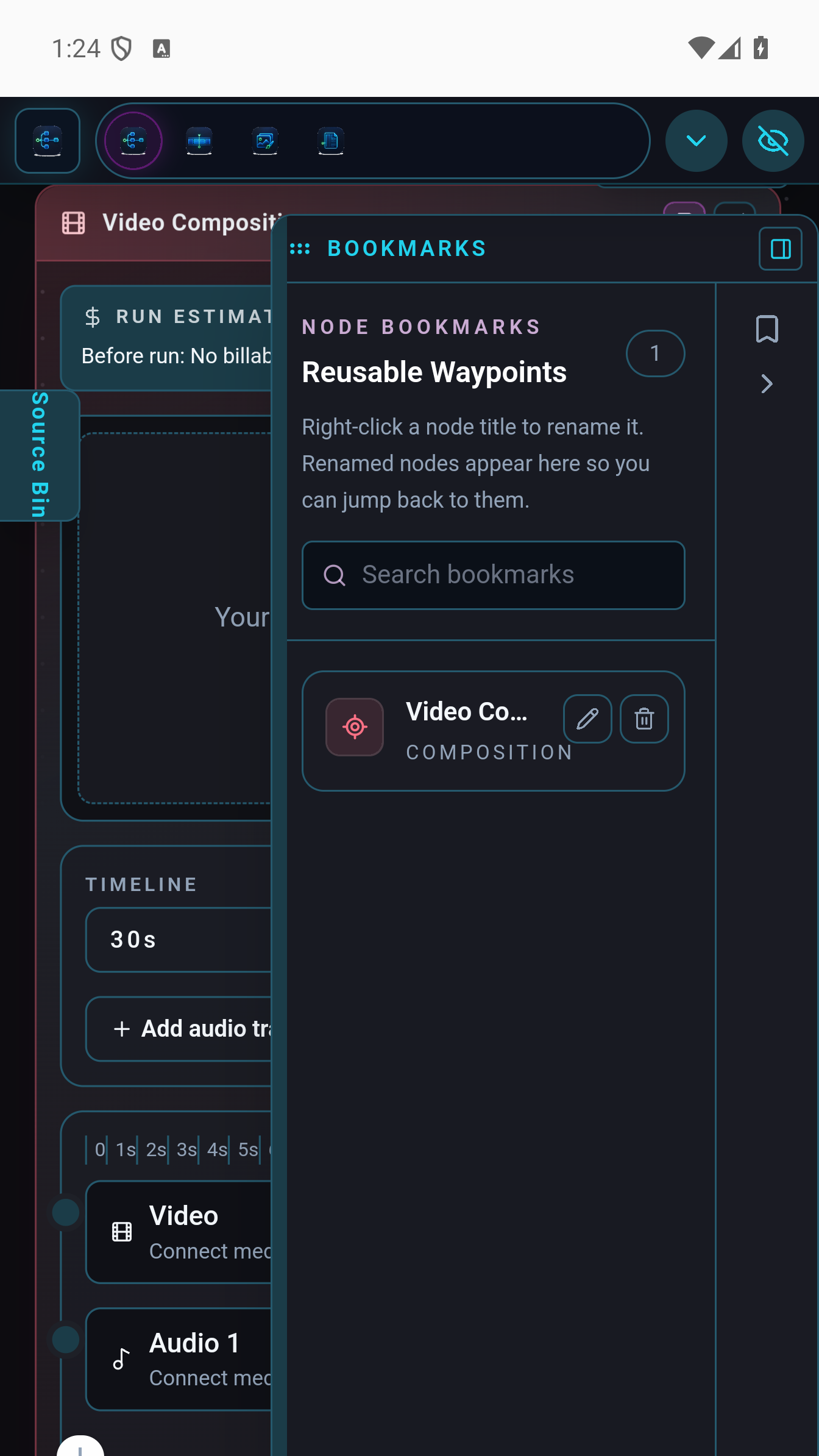
The Flow workspace is a visual node graph editor for building AI generation pipelines. You wire together prompt nodes, model nodes, transformation nodes, and output nodes to create repeatable, cost-tracked generation chains.
Node types
- Prompt node — Text input that feeds into a generation node
- Text node — Static or parameterised text for prompts and labels
- Image generation node — Calls your chosen provider to produce an image
- Video generation node — Generates a video clip from a prompt or source image
- Audio node — Voice or sound generation via ElevenLabs or compatible
- Composition node — Combines or layers generated outputs
- Export node — Sends a result to the source library or device storage
Running a graph
Tap Run in the top bar. Flow executes nodes in dependency order. Each generation node shows its provider, model, and cost estimate before and after execution. Results appear in the node output thumbnail and are added to the source library automatically.
Cost tracking
The run summary panel shows estimated cost (in provider tokens or dollars, depending on what the provider API reports) for the current run and a cumulative total for the project session. This helps you stay aware of spending without switching to a provider dashboard.
Tip: Use the source library’s Generated Pool bin to review all outputs from a flow run and drag them directly into Image, Paper, or Video.
Image workspace
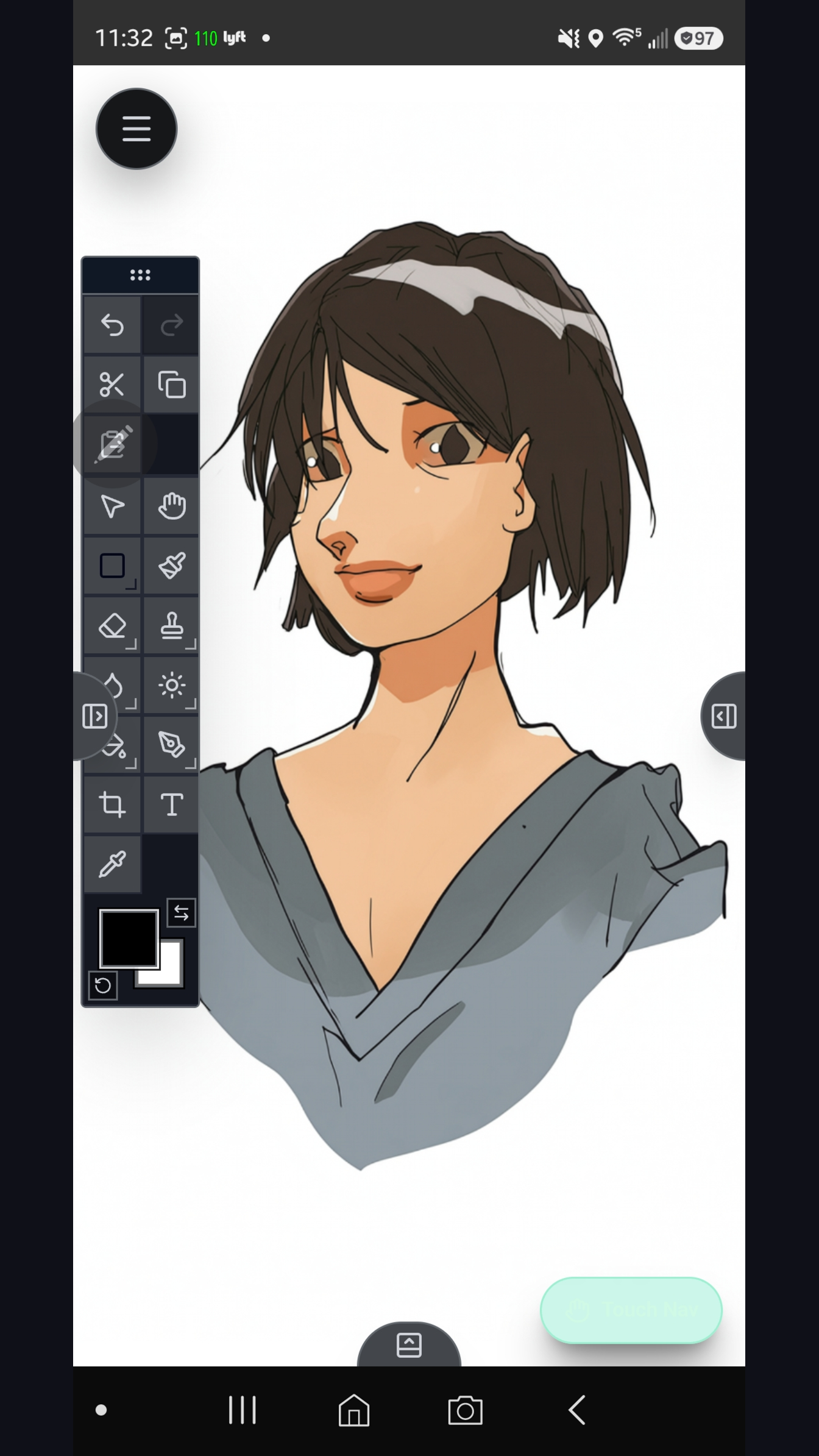
The Image workspace is a full layered image editor with AI-assisted tools including generative fill and reference-guided generation. It supports all standard layer operations plus a brush engine designed for stylus input.
Layers
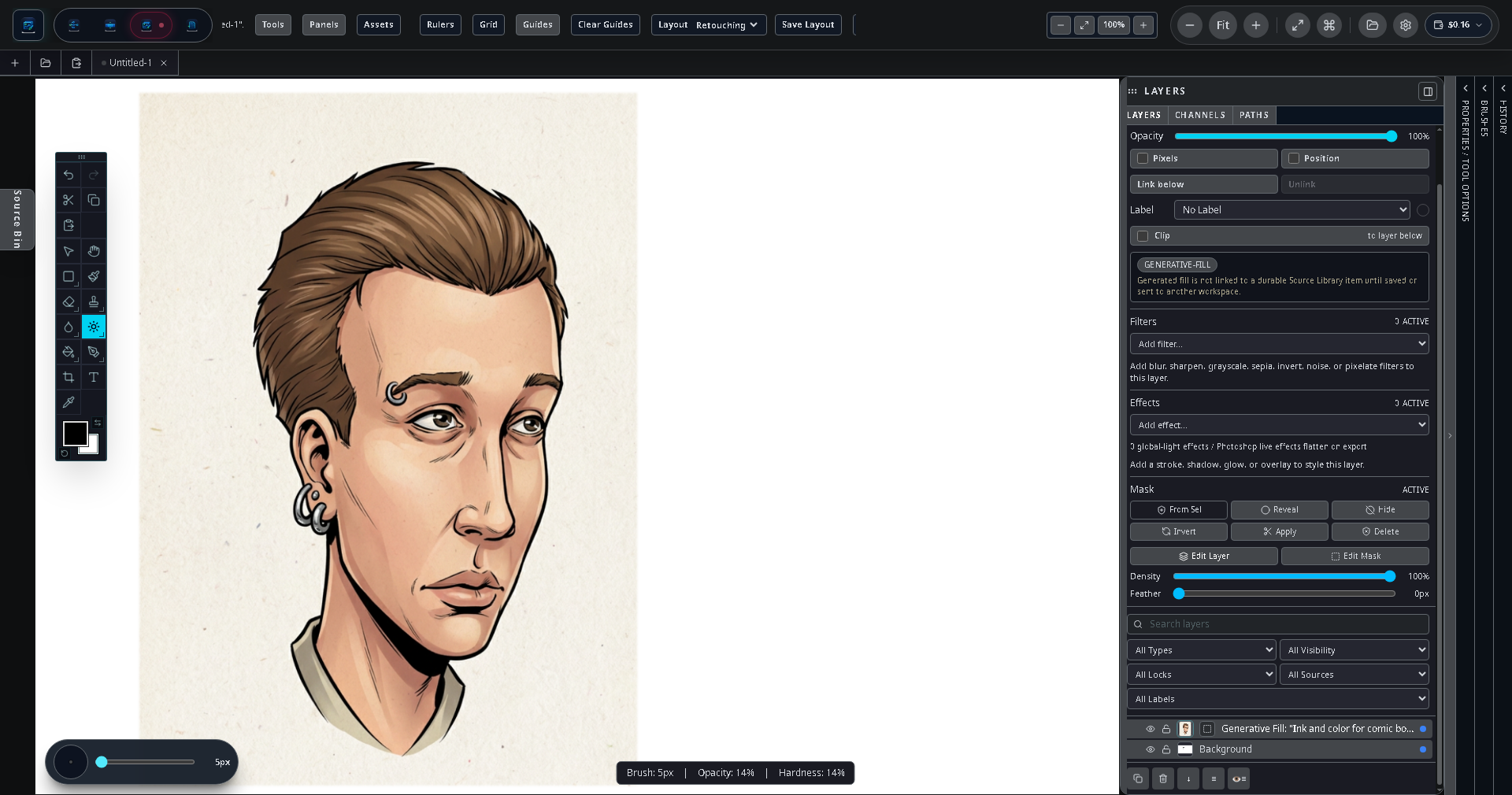
The Image workspace supports raster layers, vector layers, text layers, adjustment layers, and group layers. Each layer can have masks, effects (stroke, shadow, glow), and blend modes. The layers panel is accessible from the right-side drawer on phone, or as a persistent panel on tablet and DeX.
Brush engine
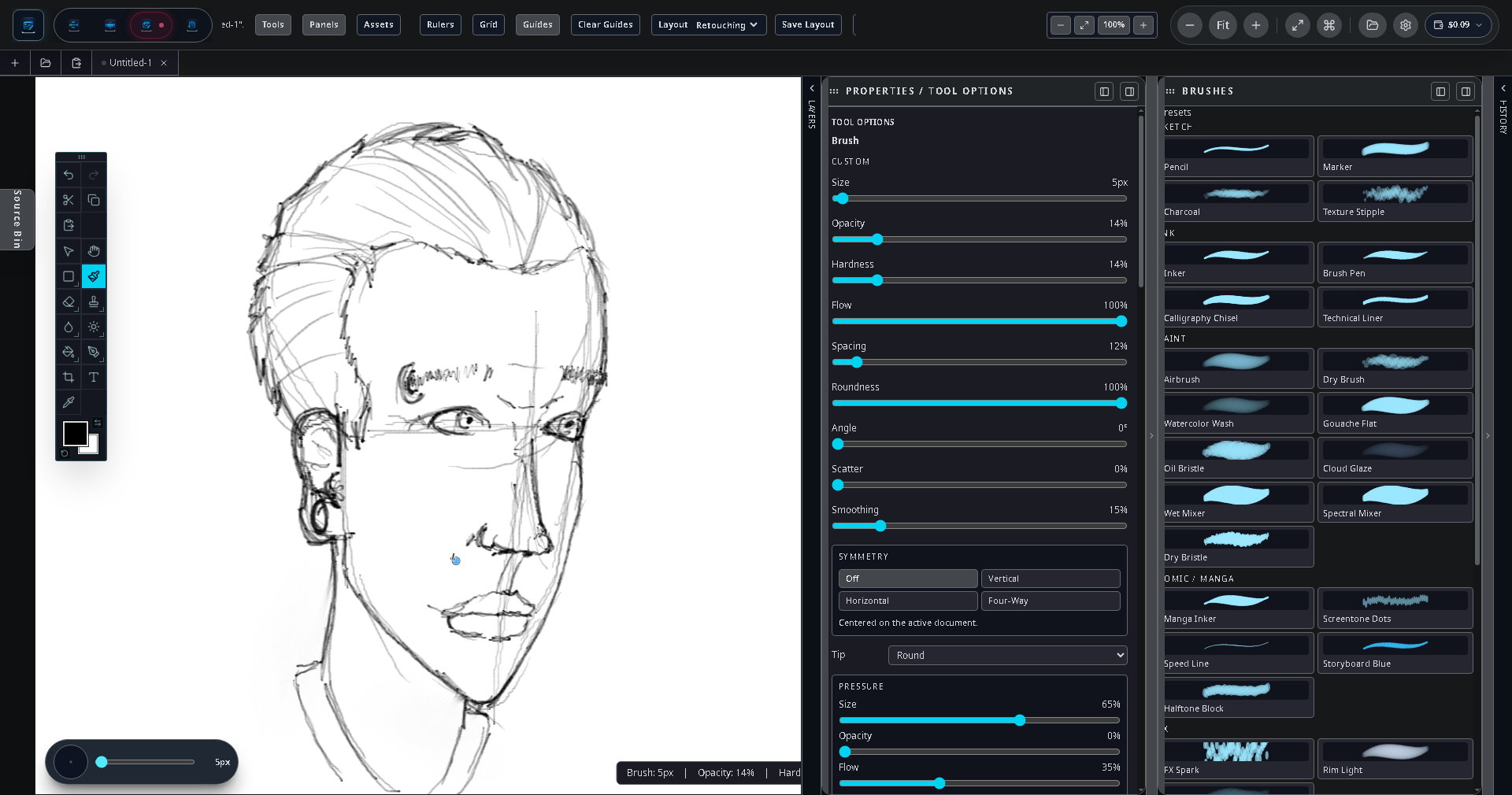
The brush engine reads full stylus input: pressure (size and opacity), tilt (spread and direction), and rotation (stamp angle). Colour dynamics let you map foreground-to-background colour transitions to pressure or pen direction. A 3D tip preview shows the current brush shape before you paint.
Generative fill
Select a region on the canvas using any selection tool, then open the generative fill panel. Enter a description of what you want in that region and choose a provider. The result blends into the layer at the selected location.
Reference-guided generation
Drag a source image from the source library into the reference panel, then run a generation action. Models that support reference images (such as certain FLUX variants and Gemini image editing modes) will use the reference to guide style, composition, or subject identity.
Export
Open the Export panel to save the flattened composite or individual layers as PNG, JPEG, or WebP. You can also send the result to Paper or Video as a source asset without leaving the project.
Paper workspace
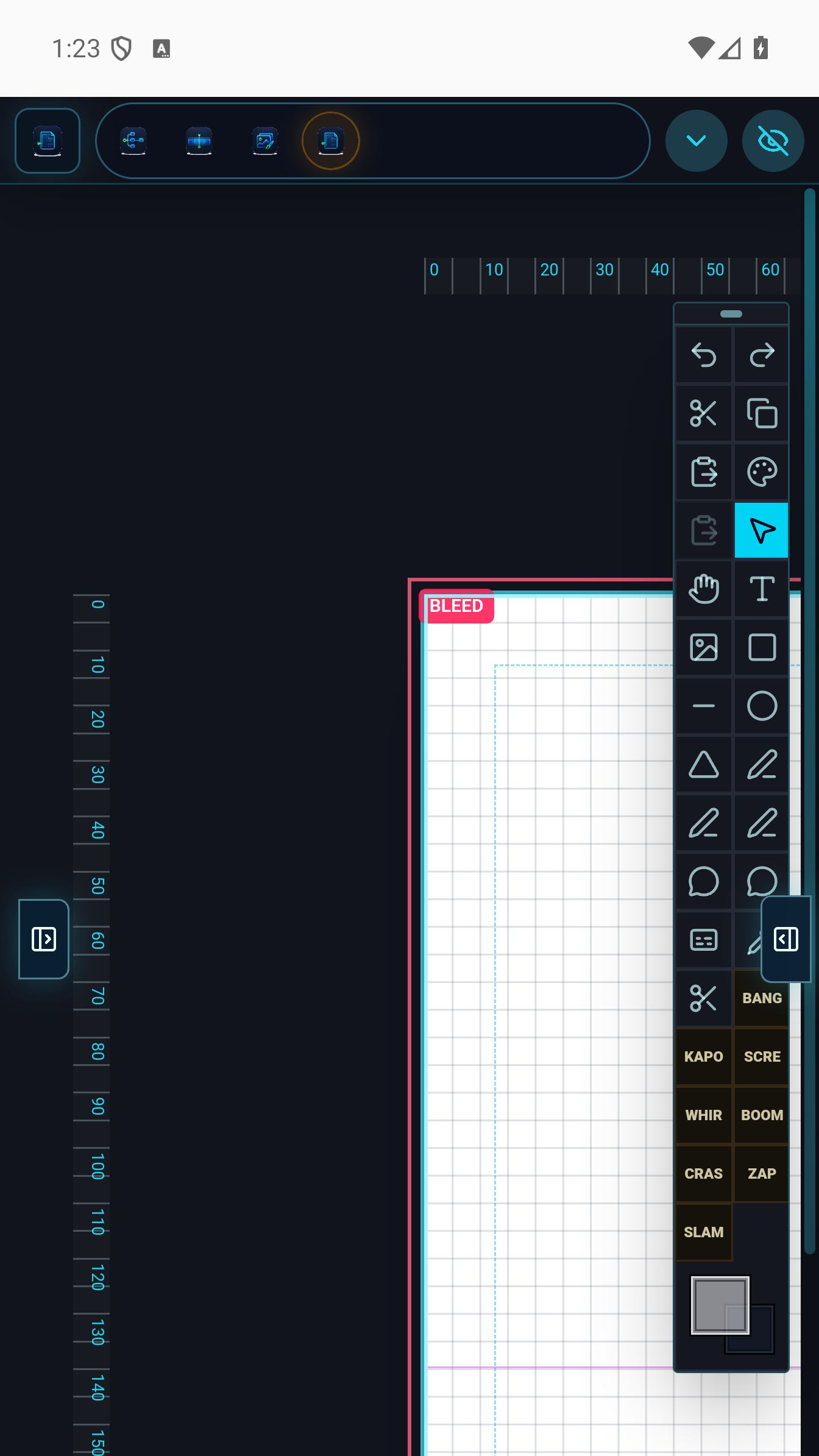
Paper is a page-based layout workspace designed for comics, illustrated books, webcomics, and long-form printed documents. Pages are composed of placed images, text frames, and comic-specific elements such as panels, speech bubbles, caption boxes, and SFX decals.
Page setup
Create a new page from the Paper toolbar. Set the page size, orientation, margin, and bleed settings. Pages can be standard print sizes or custom dimensions for webcomic exports.
Panel grids
Insert a panel grid onto a page to divide it into comic panels. Adjust gutter width, row and column counts, and individual panel sizes by dragging handles. Each panel is an independent frame that can contain an image from the source library or a raster paint layer.
Speech and caption tooling
Add speech bubbles, thought bubbles, caption boxes, and SFX text decals from the Insert menu. Each element has its own text, tail direction, and style settings. Speech bubbles can be linked in reading-order chains for scripting workflow.
Linked text frames
For long-form text (book chapters, article layouts), create a text frame and link it to subsequent frames on the same or following pages. Overflow text flows automatically through the chain.
Export
Export individual pages or full spreads as high-resolution PNG or JPEG. Export a full document as a print-ready PDF with embedded bleed marks. Webcomic mode exports each page as a standalone image at web resolution.
Video workspace
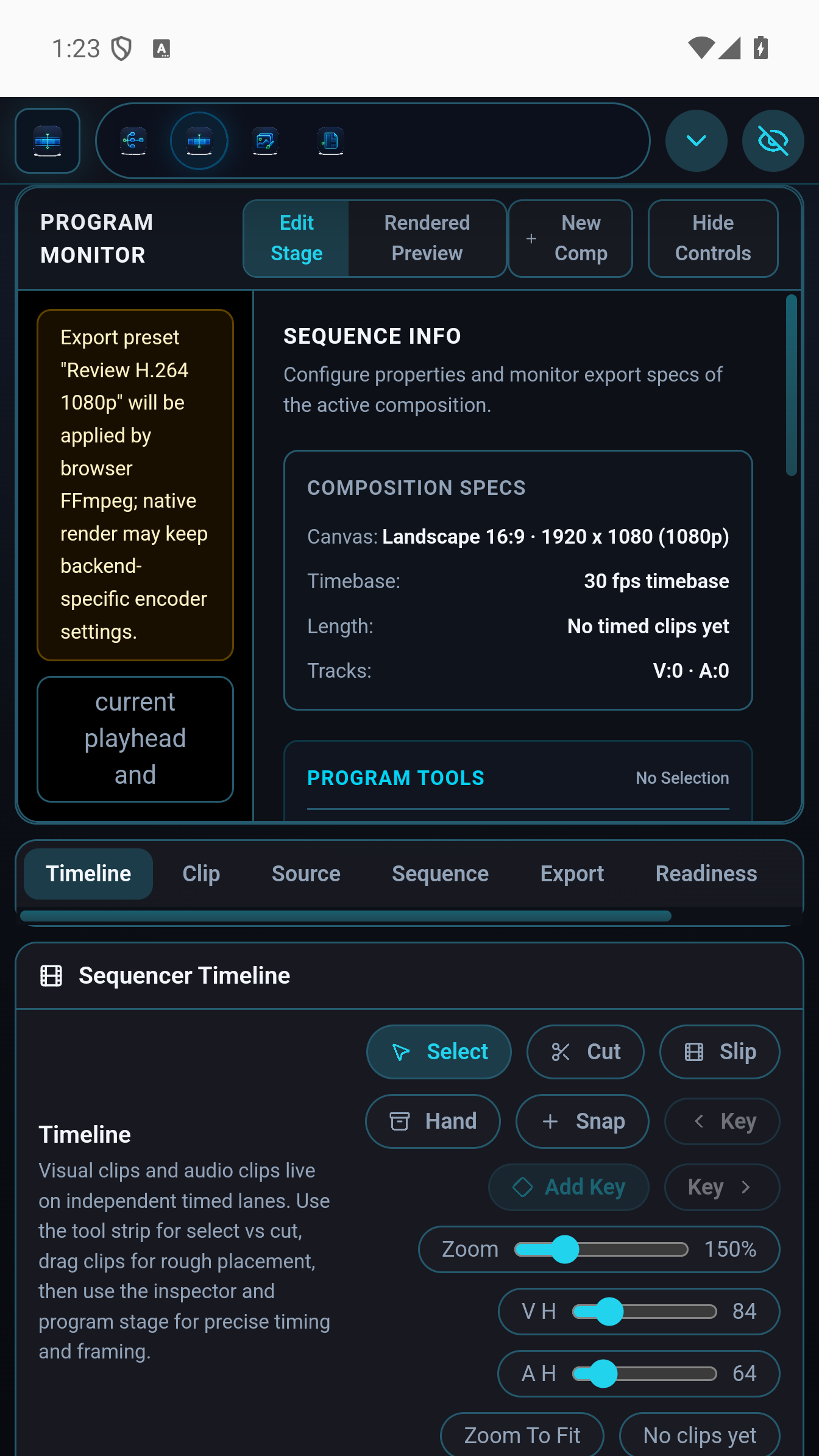
The Video workspace is a timeline-based editor for assembling generated clips, Paper pages, and imported footage into finished video sequences. It supports multi-track arrangement, keyframe animation, text overlays, and export.
Timeline and tracks
Add video, audio, image, and text tracks to the timeline. Clips snap to the playhead and to each other. Resize clips by dragging their edges. Move clips by dragging. The timeline supports as many tracks as your project requires.
Keyframe animation
Select a clip, open the Properties panel, and add keyframes for opacity, scale, position, and rotation. Keyframes appear as diamonds on the timeline track. Drag to adjust timing; double-tap to edit a value.
Text and shape overlays
Insert a text track and add timed text clips. Each text clip has its own font, size, colour, and position. Use shape overlays for lower-thirds, title cards, and graphic elements that travel with the timeline.
Source bins and Paper pages
The left drawer contains source bins shared with the rest of the project. Drag generated clips or images from Flow directly onto a video track. Paper pages can be placed on a video track as still frames, making it straightforward to animate a comic sequence or slideshow.
Export
Open the Export panel when your timeline is ready. Choose resolution, frame rate, and format, then tap Export. The render happens on your device.
Shared source library
The source library is a project-wide asset manager accessible from every workspace. It holds everything you import or generate: images, clips, audio files, Paper pages, and masks.
Assets are organised into named bins. The default bins are Generated Pool (outputs from Flow), Imported Media, and Project Pages. You can create additional bins to organise your work.
To use an asset from the library in any workspace, open the left-edge drawer (phone) or the Source Library panel (tablet/DeX) and drag the asset onto the canvas, timeline, or node graph.
Tip: Assets generated in Flow appear in the source library immediately. You do not need to export and re-import them before using them in Image, Paper, or Video.
Android
Android installation and setup
Signal Loom is an Android application available on Google Play. It runs on Android phones and tablets. For the best experience with a stylus, use an S Pen-equipped device or a tablet with Wacom-protocol stylus support.
System requirements
- Android 13 or later recommended (Android 10 minimum)
- 4 GB RAM or more recommended for large projects
- A device with a GPU that supports OpenGL ES 3.0 or later (virtually all modern devices)
Phone interface
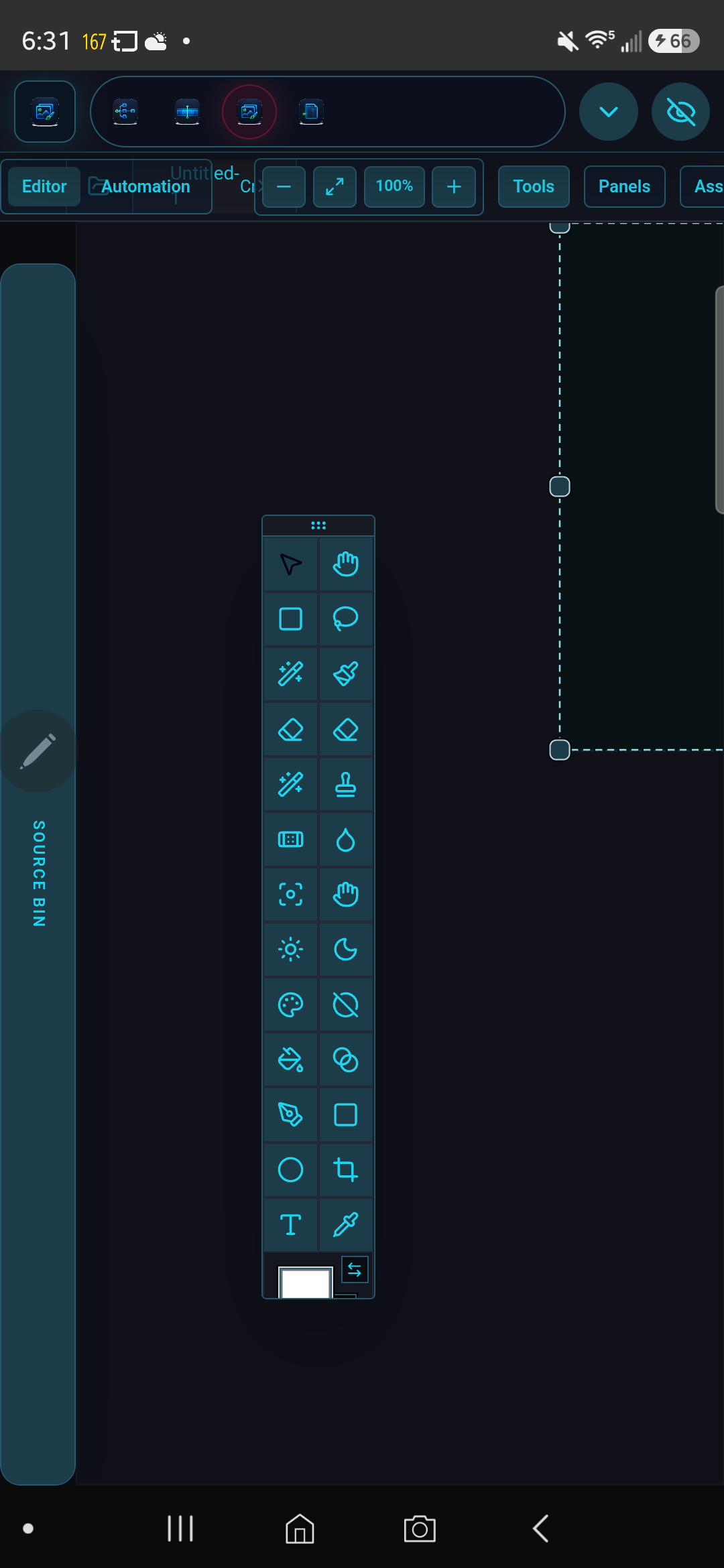
On a phone, Signal Loom uses an edge-drawer layout:
- Left edge — Source library (your assets and generated outputs)
- Right edge — Workspace panels (layers, properties, history, channels)
- Bottom edge — Quick asset browser
- Top bar — Workspace switcher, project actions, zoom, and settings
A floating tool palette provides quick access to the current workspace’s primary tools. Tap the × button in the top bar to hide all chrome and work full-screen; a restore button appears at the edge to bring the interface back.
Samsung DeX and external displays
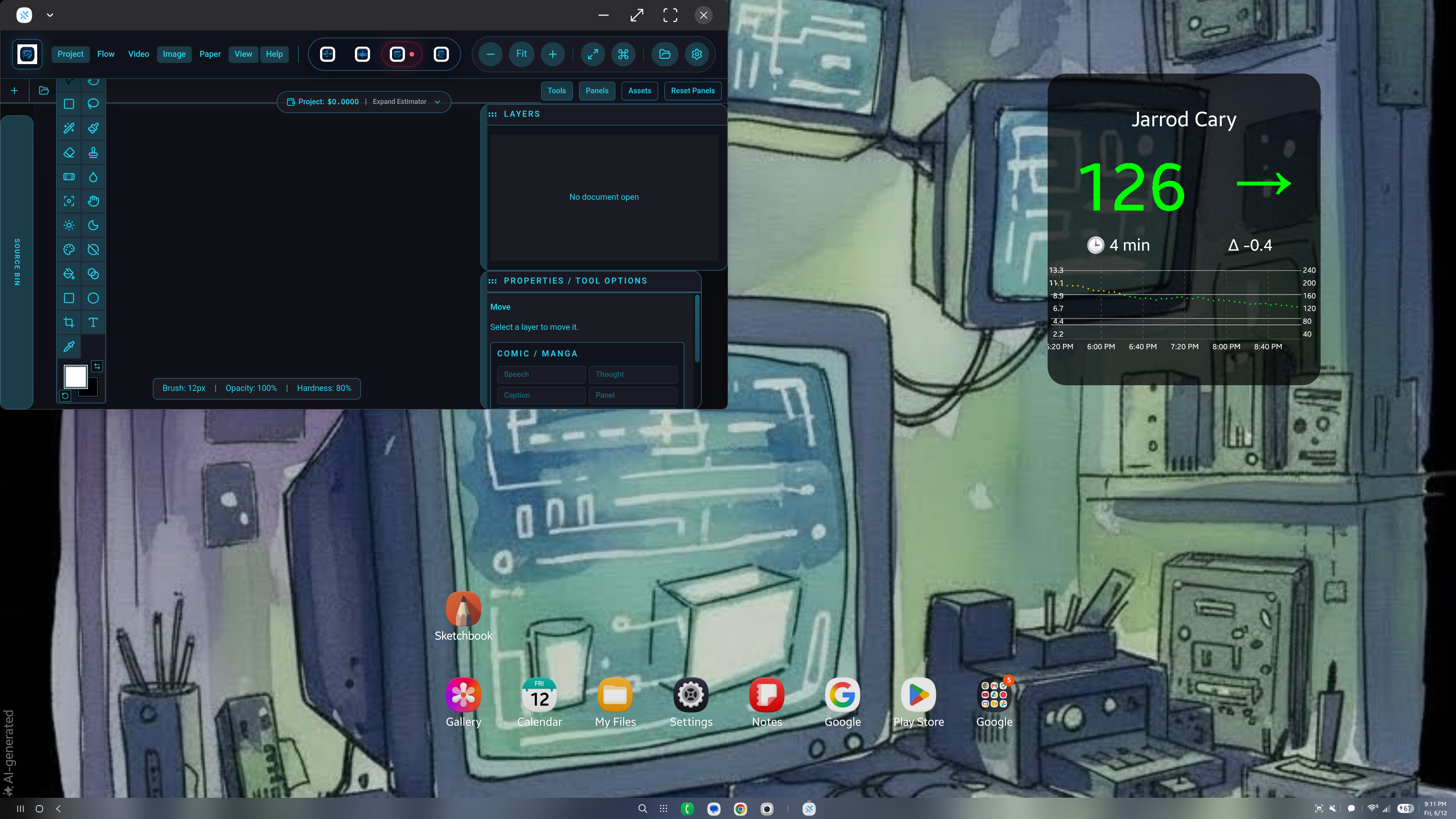
When connected to an external display via HDMI or DeX Station, Signal Loom automatically switches to a desktop-style layout with persistent side panels, a larger canvas, and full keyboard and mouse support.
Keyboard shortcuts
Standard shortcuts work in DeX mode: Ctrl+Z / Ctrl+Shift+Z for undo/redo, B for brush, S for selection, H for hand tool, Ctrl+S to save, Space to pan, and modifier keys for constrained transforms.
Mouse and pen
A Wacom-compatible pen connected via USB to the DeX dock sends full pressure and tilt data to the brush engine. Mouse scroll zooms the canvas. Right-click opens context menus.
Phone as LAN host
Signal Loom can serve the full desktop interface from your Android phone to any browser on the same local network. This means you can open the complete Signal Loom UI on a laptop or desktop PC browser without installing anything on the PC — your phone handles all the computation and project storage.
Starting the LAN server
-
1
Open the LAN host panel
In Signal Loom settings, scroll to LAN Host and tap Start server. The app displays a local IP address and port, such as
http://192.168.1.42:7700. -
2
Open the address in a browser on your PC
Type the address shown on your phone into any modern browser on the same Wi-Fi network. The full Signal Loom desktop workspace loads in the browser tab.
-
3
Work at the PC
Use your keyboard, mouse, or Wacom tablet attached to the PC. The project data lives on your phone; the browser renders the UI.
Keep your phone on the same Wi-Fi network as the PC. If your phone goes to sleep or changes networks, the connection will drop. Keep the screen awake during a LAN session.